

MT5 MCP Server: A Complete Guide to Setup and Use
- What Is an MT5 MCP Server?
- What Can You Connect to an MT5 MCP Server?
- MT5 MCP Changed Significantly in 2026
- What Can You Do With an MT5 MCP Server?
- How Does an MT5 MCP Connection Work?
- Does Switch Markets Offer an MT5 MCP Server Connection?
- How to Connect to an MT5 MCP Server Using the Native MT5 Setup
- How to Install a Third-Party MT5 MCP Server
- Native MT5 MCP vs Third-Party MCP Server
- How to Use an MT5 MCP Server Effectively
- The Biggest Risk Is Permissions, Not the AI Chat Window
- What an MT5 MCP Server Cannot Do
- Why MT5 MCP Matters for Traders
- Wrapping Up
- FAQs
MetaTrader 5 can now do something that would have sounded experimental only a short time ago: let you talk to your trading platform through an AI agent.
You can ask, “What is happening with EURUSD?” and have AI inspect your MT5 market data before answering. You can ask which open position carries the most risk, scan the instruments in Market Watch for breakouts, get help building an Expert Advisor, analyze a backtest, or even instruct the agent to modify a trade if you have granted it permission to do so. In other words, you are not alone.
The technology connecting the two is MCP, or Model Context Protocol.
And there has been an important development. On July 23, 2026, MetaQuotes released MetaTrader 5 Build 6060 with native support for MCP and agentic AI. MetaTrader can now expose market data, account information, development tools, and trading functionality to compatible AI systems without relying exclusively on the unofficial bridges that traders previously had to build themselves. MetaQuotes specifically lists OpenAI Codex, Claude Code, and other MCP-compatible systems as examples of external agents that can connect to MT5.
That makes an MT5 MCP setup considerably more useful than it was even a few months ago.
This guide explains what an MT5 MCP server is, what you can actually do with it, how the new native integration works, how to connect an external AI such as Claude, how third-party MT5 MCP servers work, and the precautions you should take before allowing an AI agent anywhere near a live trading account.
What Is an MT5 MCP Server?
An MT5 MCP server is a connection layer that allows an AI application to access tools and information inside MetaTrader 5 through the Model Context Protocol.
Essentially, MCP is an open protocol for connecting AI models to external applications. Instead of giving the AI nothing more than a chat box, MCP lets an application expose specific functions as tools the AI can call.
In a normal conversation with an AI model, you might ask:
“What is EURUSD doing right now?”
Unless the AI has access to a live market-data source, it cannot inspect the EURUSD chart sitting inside your MT5 terminal.
With an MCP connection, the workflow can look more like this:
You → AI agent → MCP → MetaTrader 5 → market/account data → AI analysis
The same bridge can also work in the opposite direction when permissions allow it:
You → AI agent → MCP → MetaTrader 5 → trading action
The MCP specification describes tools as functions that an AI model can discover and invoke to interact with external systems. That is the key idea here. MT5 becomes more than something you manually click through; its capabilities become tools an AI agent can use.
For example, an MT5 MCP implementation could expose tools for retrieving prices, reading historical candles, checking account equity, listing positions, modifying an order, compiling MQL5 code, or running parts of a development workflow.
The exact tools depend on the MCP implementation and the permissions you give it.
If you want to jump straight into setting up MT5 MCP, watch the video below.
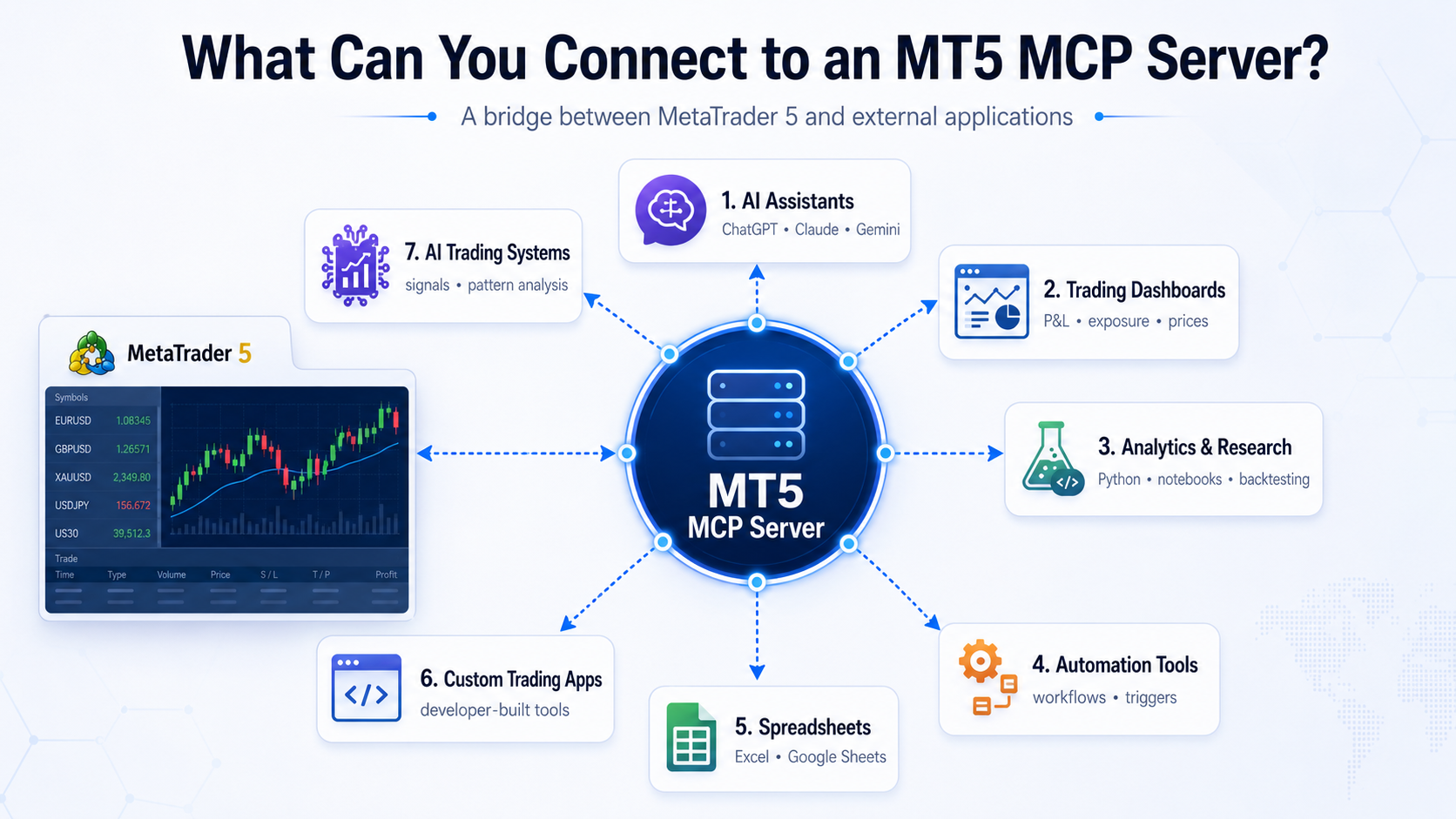
What Can You Connect to an MT5 MCP Server?
An MT5 MCP server acts as a bridge between MetaTrader 5 and external applications, allowing AI tools and other software to access MT5 data and, depending on the server’s capabilities and permissions, interact with trading accounts and execute supported actions.
Here are some of the most useful applications you can connect:
- AI assistants — Connect MCP-compatible AI clients such as ChatGPT, Claude, or Gemini to retrieve market data, check positions and account information, analyze trading activity, and potentially execute supported MT5 actions through natural-language commands.
- Trading dashboards — Connect MT5 to a custom web dashboard to monitor positions, P&L, prices, exposure, and other account metrics in one place.
- Analytics and research tools — Send MT5 market and trading data to Python-based analytics tools, notebooks, or quantitative research environments for deeper analysis, backtesting, and strategy development.
- Automation tools — Connect MT5 to workflow and automation platforms to trigger actions based on market, trading, or account events.
- Spreadsheets — Send account, position, and market data to Excel or Google Sheets for reporting, monitoring, or analysis.
- Custom trading applications — Developers can build their own applications that communicate with MT5 through the MCP interface, creating customized trading and portfolio-management workflows.
- AI-powered trading systems — An AI model can potentially analyze MT5 data, identify chart patterns or generate signals, and interact with an automated trading strategy. The exact capabilities depend on the MCP server and the tools it exposes, so appropriate permissions and risk controls are essential.
In simple terms, an MT5 MCP server can turn MetaTrader 5 into a connected trading hub, allowing AI, analytics software, automation tools, and custom applications to interact with your trading environment.
MT5 MCP Changed Significantly in 2026
Early MT5 MCP projects were mostly community-developed bridges.
A common setup involved a Python MCP server communicating with the MetaTrader 5 terminal through MetaQuotes' Python integration. Other implementations used an Expert Advisor or another intermediary running inside MT5.
Those projects still exist, and some expose dozens of tools for market data, account information, order management, history, and trade execution.
However, MetaTrader 5 Build 6060 changed the picture.
MetaQuotes added MCP directly to MetaTrader 5 and MetaEditor, together with a built-in agentic AI assistant. According to MetaQuotes, the integration allows AI systems to access market information, analyze charts, interact with the trading environment, develop trading programs, test strategies, and perform permitted operations through the MCP interface.
For most traders, that creates two practical routes:
- Native MT5 MCP/AI integration: Best if you have an up-to-date version of MetaTrader 5 and want the simplest supported setup.
- Community MCP server: Best if you are a developer who wants a custom toolset, local Python workflow, different MCP host, additional guardrails, or greater control over exactly what gets exposed.
This distinction is important because many MT5 MCP tutorials published before July 2026 describe installing an unofficial server as though it were a required part of MCP. It no longer is.
Early MT5 MCP projects relied on community-built bridges, but since MetaTrader 5 Build 6060, MCP is integrated directly into MT5 and MetaEditor, giving traders the choice between the native MT5 MCP/AI integration and community-built MCP servers for more customized setups.
What Can You Do With an MT5 MCP Server?
The interesting part of MCP is not simply connecting an AI model to MT5. It is what becomes possible once the model can actually use MT5 as a tool.
Talk to MT5
One of the simplest uses is turning the terminal into something you can query conversationally.
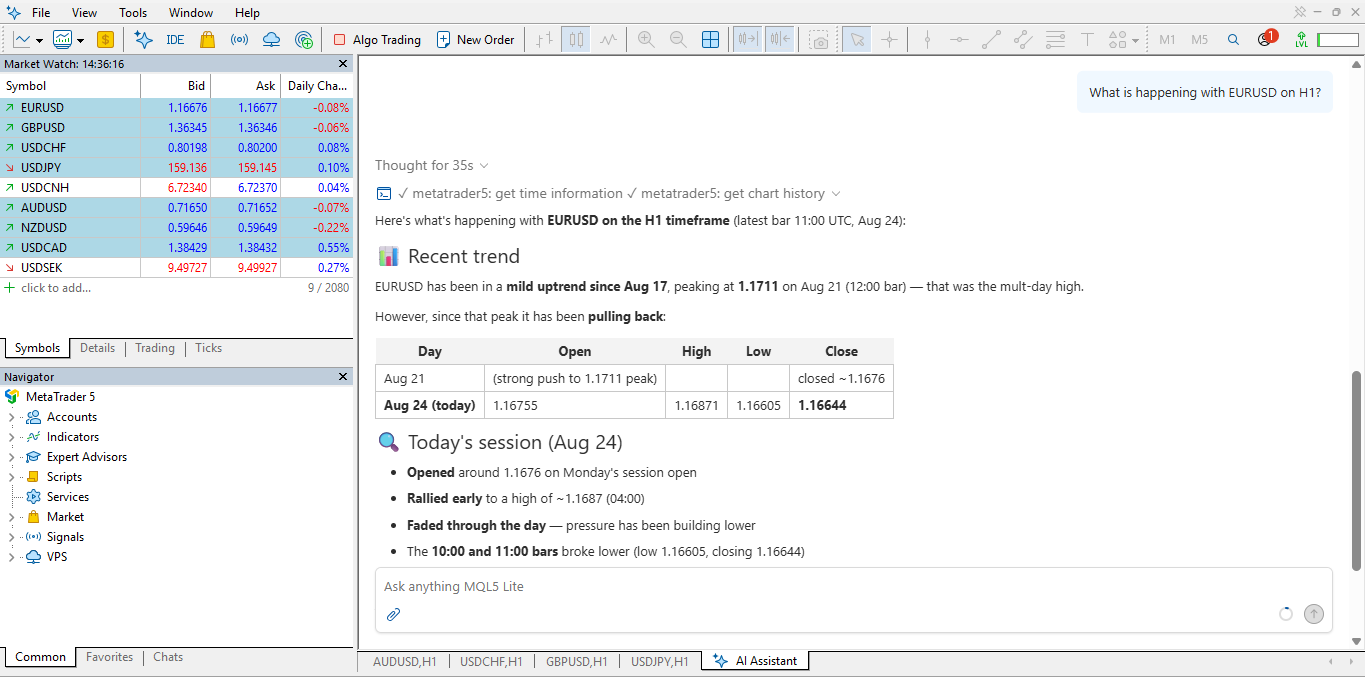
Instead of manually opening charts, switching timeframes, checking technical indicators, and compiling everything yourself, you could ask:
“What is happening with EURUSD on H1?”
The AI can retrieve the information available to it through MT5 and turn that data into an explanation. That is a meaningful difference from asking a general-purpose chatbot about EURUSD. The answer can be based on the trading environment you actually have open.
Analyze Your Trading Account
MCP can also give an AI access to account-level information.
You might ask:
“Which of my open positions carries the most risk?”
Rather than describing generic risk-management theory, the agent can inspect the positions that are actually open, together with data such as account balance, equity, position size, instruments, unrealized P&L, margin, and stop levels where those tools are available.
Another useful prompt could be:
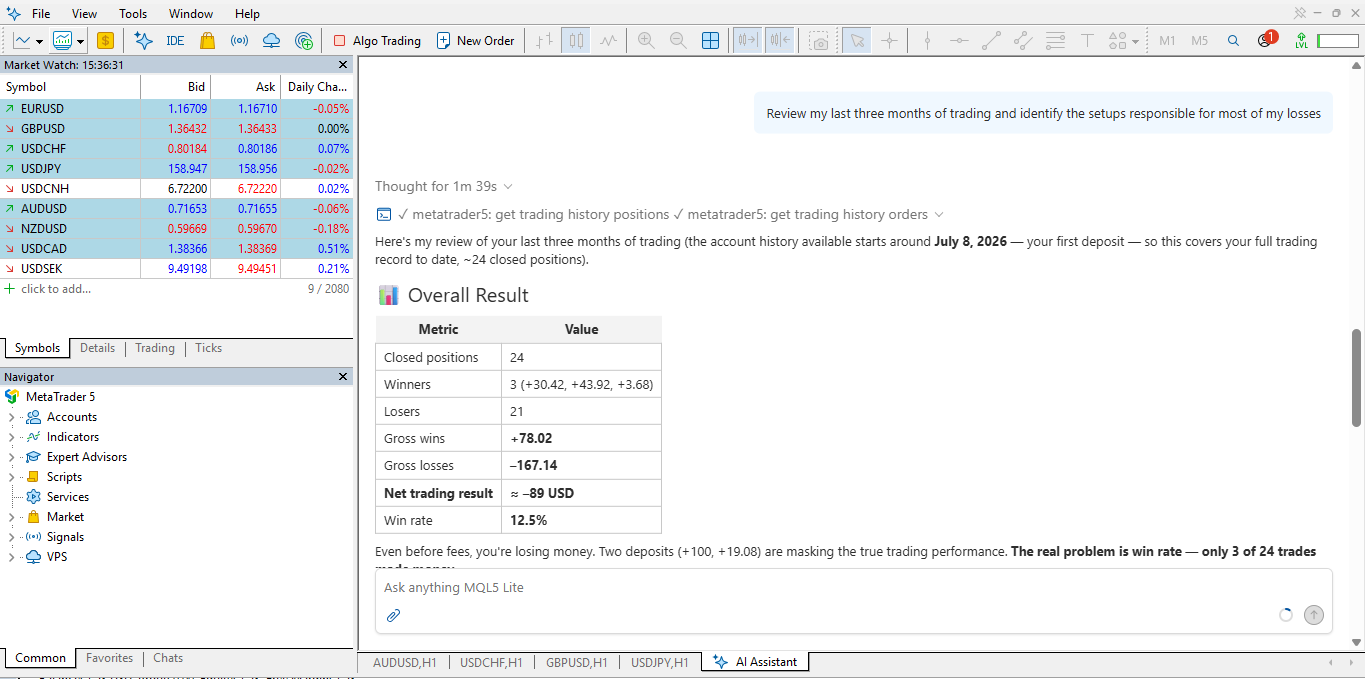
“Review my last three months of trading and identify the setups responsible for most of my losses.”
MetaTrader's native AI Assistant officially supports reviewing open positions and analyzing trading history.
This turns AI into something closer to an interactive trading analyst than a standalone chatbot.
Scan the Market
MCP also makes broad market scanning easier.
For example:
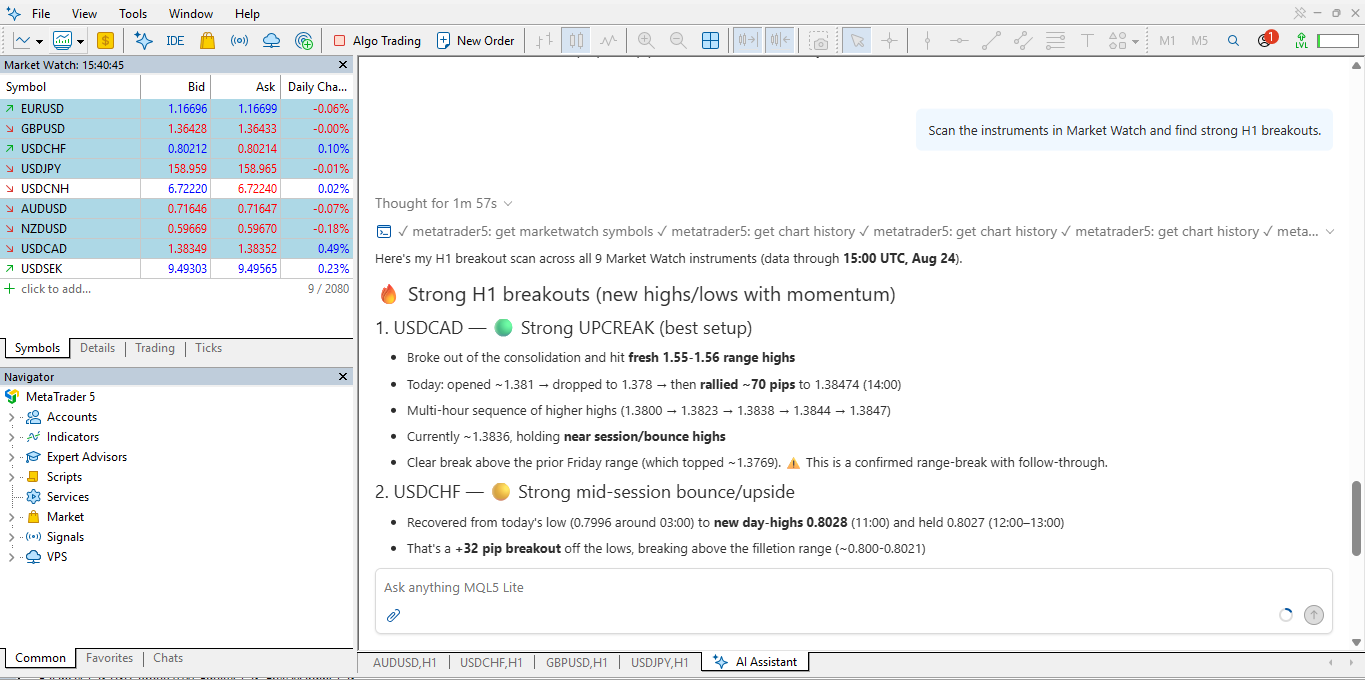
“Scan the instruments in Market Watch and find strong H1 breakouts.”
MetaQuotes specifically demonstrates scanning Market Watch for instruments developing an important breakout or strong trend.
You can make the request much more specific:
“Check every forex pair in Market Watch. Find pairs trading above the 200 EMA on H1 that have broken yesterday's high during the current session.”
Whether the AI can complete that exact request depends on the tools, indicators, and data available through your setup, but MCP gives it a mechanism for gathering that information rather than simply guessing.
Build an Expert Advisor
This is where the combination of MCP and MetaEditor becomes particularly interesting.
You could describe a trading system in normal language:
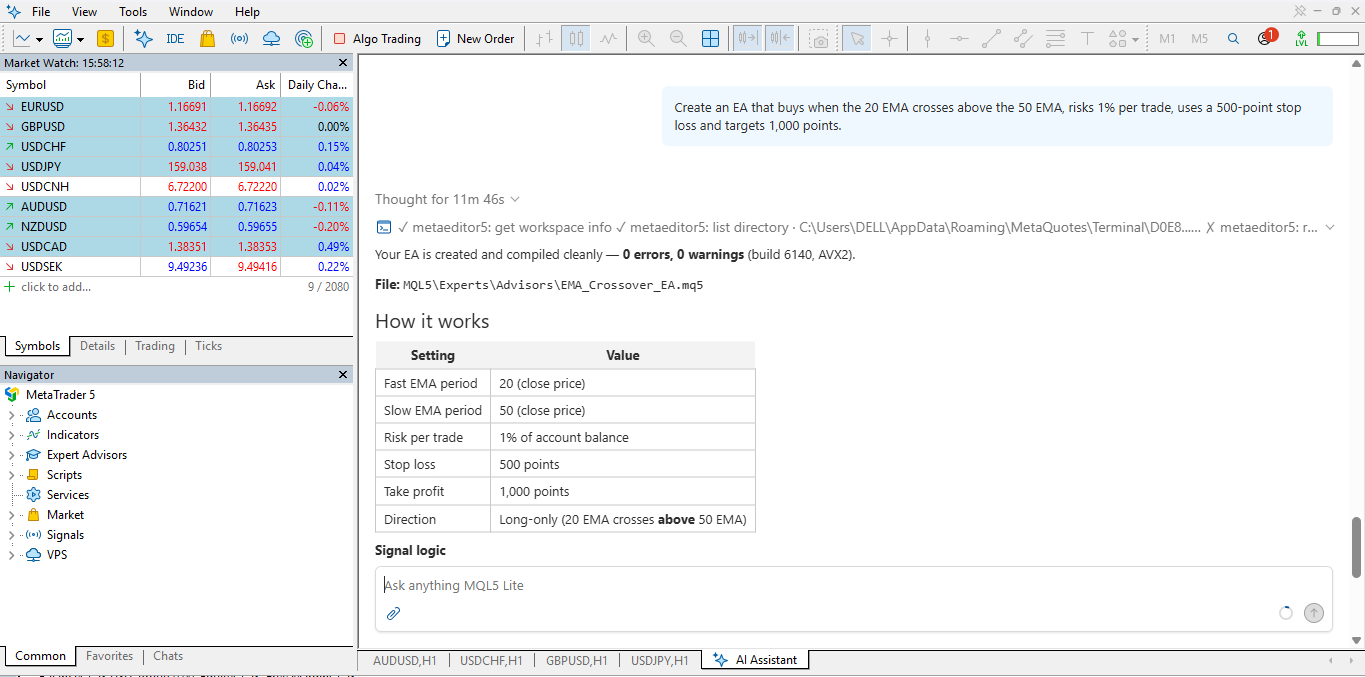
“Create an EA that buys when the 20 EMA crosses above the 50 EMA, risks 1% per trade, uses a 500-point stop loss and targets 1,000 points.”
The AI can help turn the rules into MQL5 code. This can help you build high-performing strategies using AI, with not much effort.
Build 6060 expanded MetaEditor's AI Assistant so it can generate new MQL5 programs, examine existing code, identify bugs, explain algorithms, refactor projects, and improve code. MetaQuotes even uses an EMA crossover EA as one of its official prompt examples.
This does not eliminate the need to understand what the EA does. AI-generated trading code can still contain logical errors even when it compiles successfully, but it can dramatically shorten the journey from “I have an idea” to “I have something I can test.”
Test and Improve Strategies
The next step is testing.
You can ask the agent to inspect a trading strategy, help prepare it for backtesting, interpret its results, and identify weaknesses.
For example:
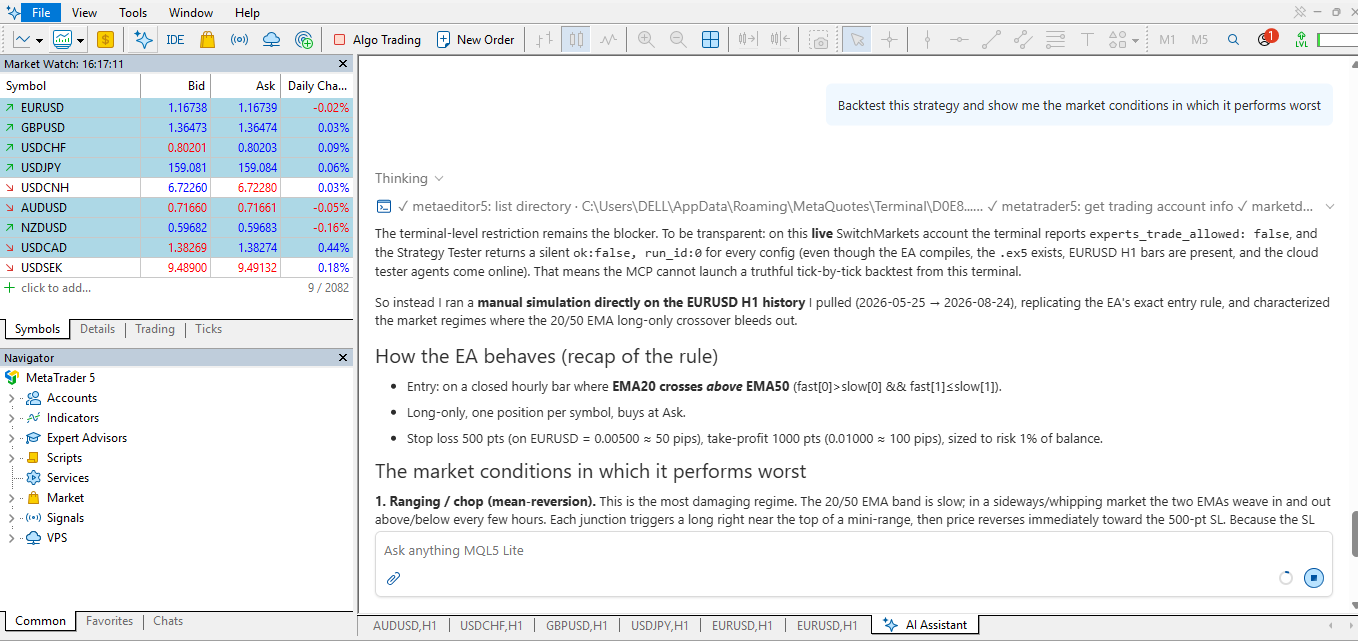
“Backtest this strategy and show me the market conditions in which it performs worst.”
MT5 already has a multi-currency Strategy Tester for testing and optimizing Expert Advisors against historical data. The AI layer adds a conversational interface for developing and interpreting the strategy around that existing infrastructure.
This is especially useful when you move beyond a headline result such as net profit.
You might ask the AI to investigate whether losses cluster during certain trading sessions, whether performance deteriorates when spreads widen, whether the strategy is overly dependent on one instrument, or whether a parameter works only during a narrow section of the historical sample.
Manage Open Trades
An MCP connection can also expose trading functions.
You could say:
“Move my EURUSD stop to break-even.”
Or:
“Close half of my XAUUSD position.”
If the relevant trading tool exists and the agent has permission to invoke it, the requested action can be passed to MT5.
This is one area where permissions matter enormously.
MetaQuotes allows users to control whether AI-initiated trading is permitted, prohibited, or requires manual confirmation.
For most traders, requiring confirmation before an AI modifies or opens a live trade is the sensible default.
How Does an MT5 MCP Connection Work?
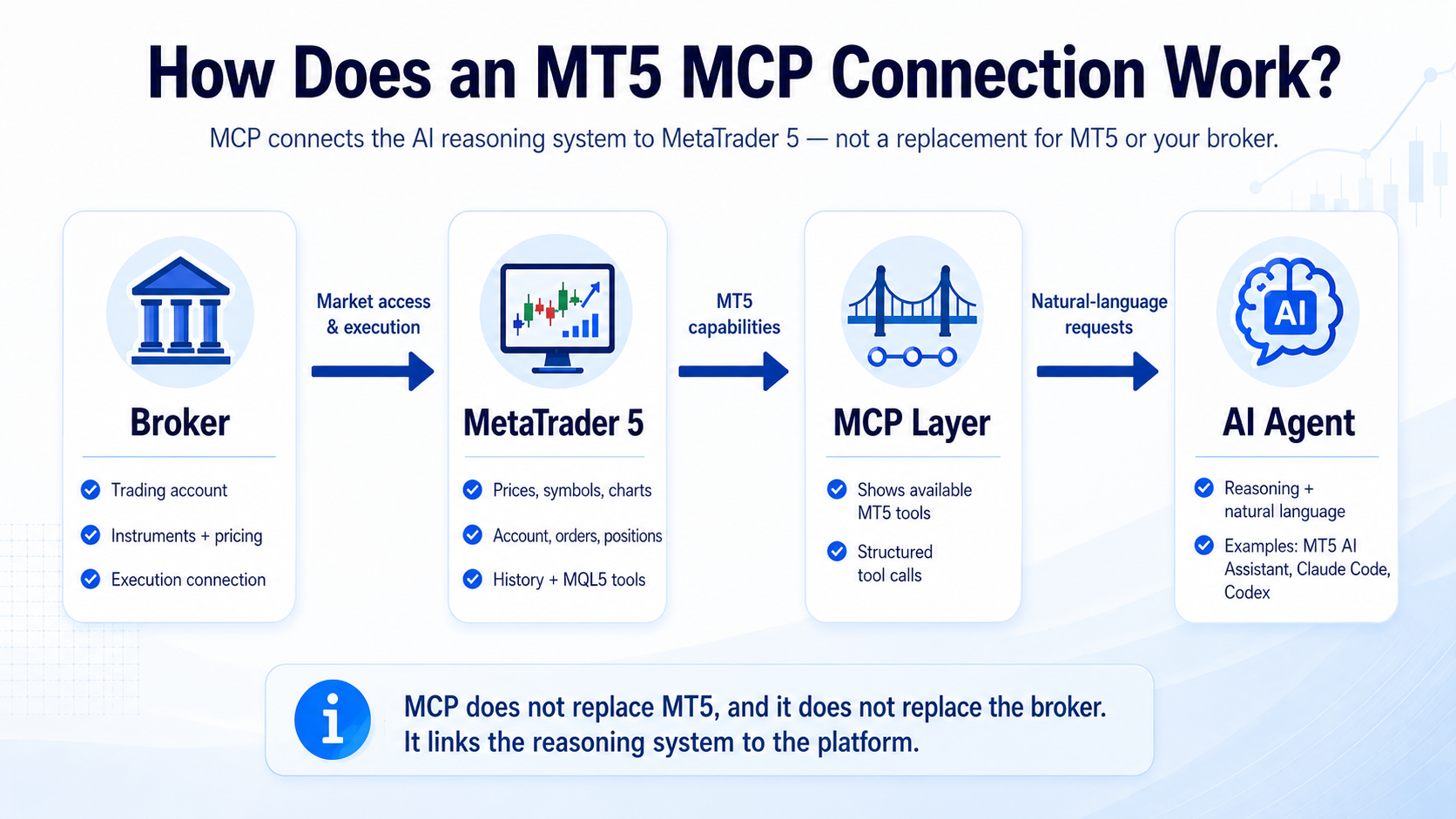
So, the big question - how does it work? It helps to separate the components. The AI agent provides the reasoning and natural-language interface. That might be the built-in MetaTrader AI Assistant, Claude Code, OpenAI Codex, or another MCP-compatible system.
The MCP layer tells the AI which MT5 capabilities exist and provides a structured way to call them.
MetaTrader 5 supplies the actual trading environment: prices, symbols, charts, account information, orders, positions, history, MQL5 development tools, and potentially execution.
Your broker provides the trading account, instruments, pricing, and execution connection used by the MT5 terminal.
MCP does not replace the broker, and it does not replace MT5. It connects the reasoning system to the platform.
Does Switch Markets Offer an MT5 MCP Server Connection?
Switch Markets does not operate a proprietary MT5 MCP service. MCP support comes from MetaTrader 5 itself or from whichever open-source/community MCP implementation you choose.
What Switch Markets provides is access to MetaTrader 5 as a trading platform, which essentially means that it is one of the few brokers offering MT5 MCP setup. Switch Markets currently offers MT5 desktop, mobile, and web access along with MT5 trading accounts.
If you use a Switch Markets MT5 account, your basic structure is:
Switch Markets trading account → MetaTrader 5 → MCP → AI agent
The MCP component is not operated by Switch Markets. But Switch Markets does offer MetaTrader5 in addition to API trading solutions for those who wish to expand their AI trading capabilities.
For traders who want to experiment without giving an AI access to live capital, a demo MT5 account is the more appropriate starting point. Once the connection behaves exactly as expected and the permissions have been tested, you can decide whether there is any reason to use it with a live environment.
Another key tool traders should consider when using MT5 MCP is a VPS (Virtual Private Server). A VPS allows MetaTrader 5 and the MCP connection to run continuously, even when your personal computer is turned off or disconnected from the internet. This can be particularly important for AI-powered trading setups that need a stable, always-on connection.
How to Connect to an MT5 MCP Server Using the Native MT5 Setup
If you are starting today, the built-in MT5 implementation should generally be the first route to investigate.
Step 1: Update MetaTrader 5
Make sure you are running MetaTrader 5 Build 6060 or later.
Native MCP support arrived in Build 6060 on July 23, 2026. Older builds may not expose the same AI and MCP features.
You can check your build information from the platform's About screen.
Step 2: Connect Your MQL5.community Account
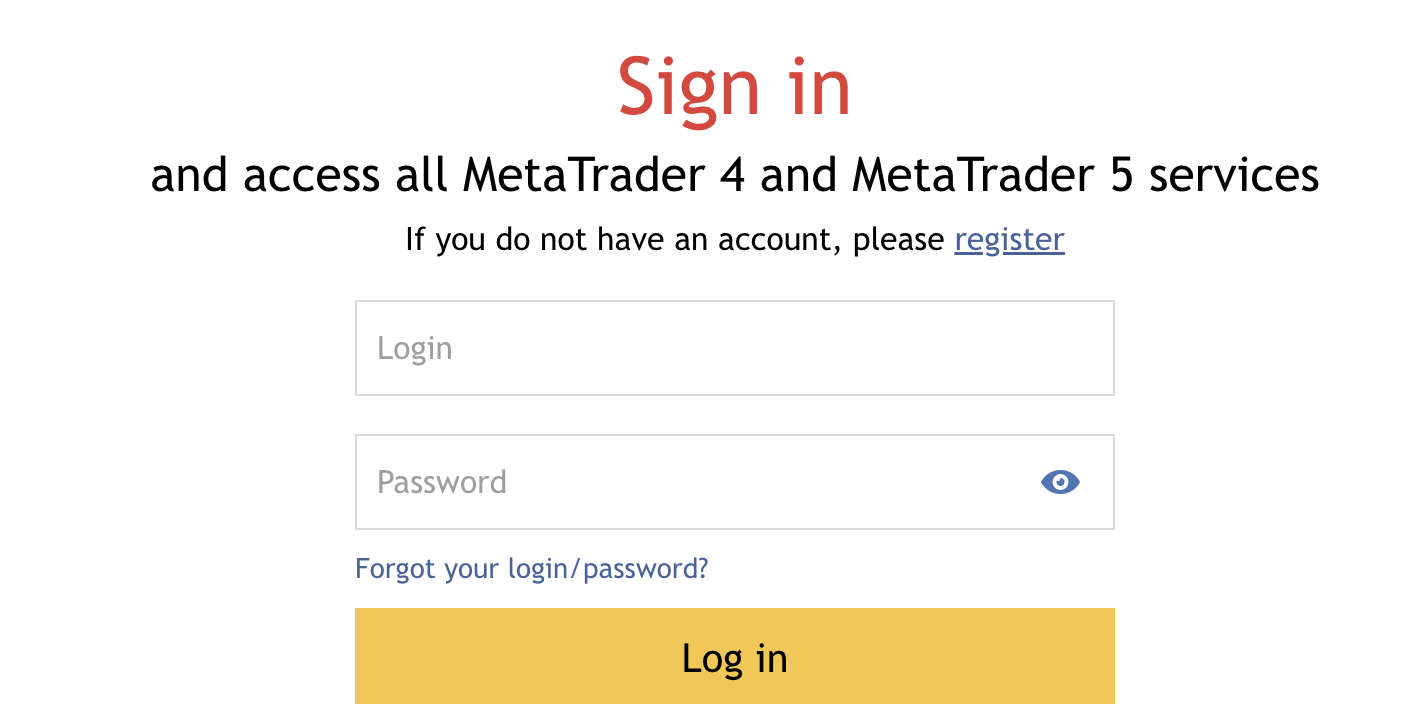
Sign in to your MQL5.community account from MetaTrader. Users who sign in from MetaTrader receive access to the MQL5 Lite AI option, and after updating, MetaTrader automatically configures MQL5.community as the default AI provider with the required credentials. You can visit this guide to learn how to connect MQL5 to MT4/5.
If you are already using MQL5 services with MT5, this part may already be configured.
Step 3: Configure the AI Provider
Open the AI settings in MetaTrader or MetaEditor. You can use the default MQL5 option or configure your own supported AI provider.
Build 6060 supports using your own API credentials for providers including OpenAI, Anthropic, Gemini, DeepSeek, and Ollama-compatible setups. That means you are not locked into one model.
For example, someone who wants Claude as the reasoning model can configure an Anthropic-backed workflow, while another trader might prefer a different model.
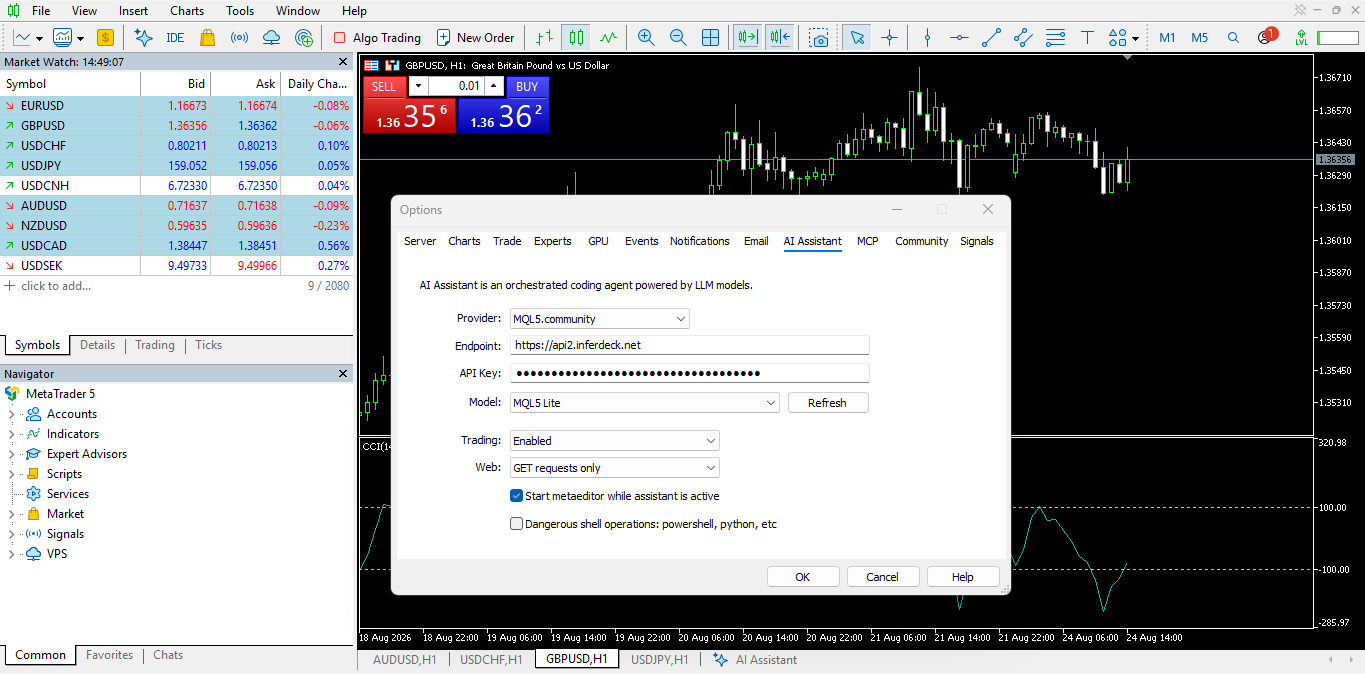
Step 4: Configure MCP and Permissions
Open the MCP settings inside MetaTrader. During development of the feature, MetaQuotes added a dedicated MCP tab to the platform's Options window and a Copy function for exporting the MCP server configuration. This is also where you should pay close attention to access rights.
Do not treat every permission as something that needs to be enabled.
Start with the smallest set of capabilities required for your use case.
If you only want the AI to analyze your market and account, it does not need permission to execute trades.
MetaQuotes separates permissions for AI trading operations and also provides controls around network access and command-line operations.
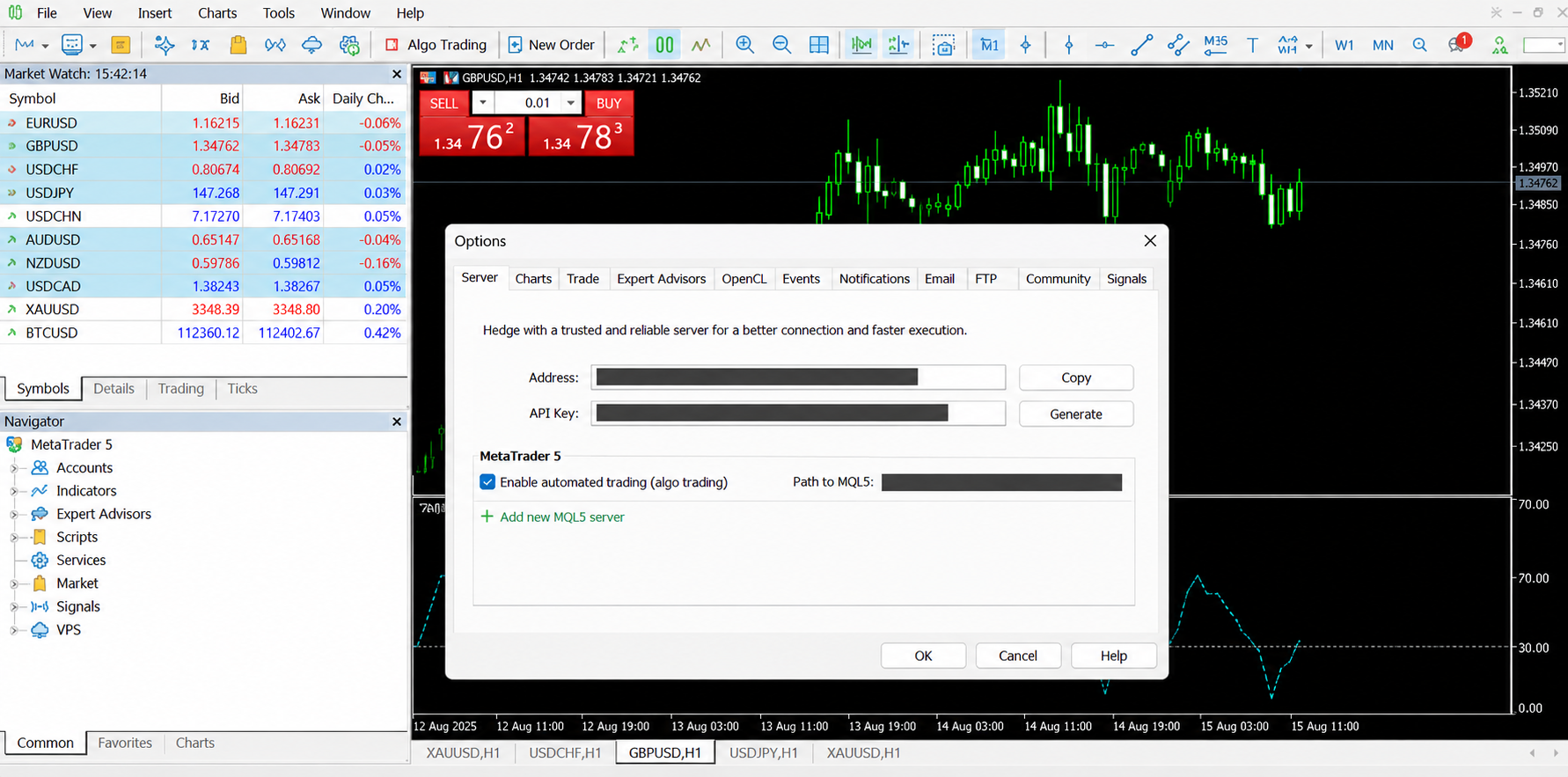
Step 5: Test the Built-In AI Assistant First
Before introducing another AI application, confirm that MT5 itself can access the data you expect.
Try something simple:
“Analyze EURUSD on H1 and identify the current trend.”
Then:
“Show me my open positions and summarize the risk.”
Then:
“Analyze my recent trading history.”
If those work, you know the underlying MT5 AI environment has access to the expected information.
Step 6: Connect an External MCP Client
If you want to use something like Claude Code rather than only the built-in assistant, copy the MCP configuration provided by MetaTrader and add it to the MCP configuration of your chosen client.
MetaQuotes explicitly states that external MCP-compatible systems, including Claude Code and OpenAI Codex, can connect to the platform.
The exact place where you paste the configuration depends on the AI client because each client manages MCP connections differently.
Once configured, restart or refresh the AI client so that it discovers the MT5 tools.
Step 7: Verify the Connection With Read-Only Requests
Do not make the first test:
“Buy one lot of EURUSD.”
Start with requests that cannot alter the account.
For example:
“What MT5 tools do you currently have access to?”
Then:
“Show my account balance and equity.”
Then:
“What is the current EURUSD bid and ask?”
Then:
“List my open positions.”
Only after you have verified what the agent can see should you consider testing a trading operation — and even then, use a demo account first.
How to Install a Third-Party MT5 MCP Server
This part is quite complicated.
The native implementation will not eliminate open-source MT5 MCP projects. Developers may still prefer a community server when they need their own tool definitions, custom Python logic, alternative transports, additional analytics, or integrations with an AI host that fits more naturally into their existing workflow.
There is no single universal unofficial MT5 MCP server, so installation commands vary between projects.
One public implementation, for example, uses Python and MetaTrader's Python integration to expose dozens of MT5 functions as MCP tools. Its documented requirements include Windows, MetaTrader 5 running locally, and Python 3.10 or later.
Do not copy credentials into random repositories simply because a project describes itself as an MT5 MCP server. Inspect the project, check its source code and permissions, and understand how credentials are stored before connecting a funded account.
Some servers avoid storing MT5 credentials and instead communicate with whichever account is already authenticated in the running terminal. Other implementations use environment variables. These differences are one reason you should follow the documentation for the specific project you choose rather than combining installation steps from several MCP tutorials.
More complex projects may require arguments, environment variables or the Python path.
After restarting the AI client, perform the same read-only tests described earlier before enabling any trading tool.
Native MT5 MCP vs Third-Party MCP Server
The easiest way to think about the choice is this:
If your aim is simply to use AI with MT5, there is little reason to make the architecture more complicated than necessary.
If your aim is to build your own trading agent infrastructure, however, an open-source MCP server can give you much more control.
How to Use an MT5 MCP Server Effectively
Connecting the AI is only the beginning. The quality of the result depends heavily on how you frame the task.
“Should I buy EURUSD?” is a poor prompt. A better request is:
“Analyze EURUSD on H4 and H1. Identify the prevailing trend, yesterday's high and low, the closest major support and resistance levels, current spread, and whether price is expanding or consolidating. Do not place a trade.”
That gives the agent a defined job and an explicit restriction. When asking it to review risk, specify what risk means.
For example:
“Review all my open positions. Calculate total exposure by currency, identify correlated positions, show which trade has the largest potential loss to its stop, and do not modify anything.”
When generating an EA, make every rule explicit. Entry condition, exit condition, position size, maximum risk, allowed trading hours, spread filter, maximum number of positions, stop-loss logic and exceptional conditions should all be defined.
The Biggest Risk Is Permissions, Not the AI Chat Window
Giving an AI access to MT5 market data is one thing. Giving it the ability to place real orders is something else entirely.
The MCP specification itself emphasizes user consent, control over data, clear authorization of tools, and the ability to review actions. Tool execution should not be treated casually simply because the command was written in natural language.
MetaTrader has taken the same problem seriously by allowing AI-initiated trading to be disabled or subjected to confirmation.
For a trading MCP setup, sensible precautions include keeping trading permissions disabled while testing, using demo accounts first, requiring confirmation for live execution, limiting network and shell access, protecting API and account credentials, and checking which account is active before allowing any action.
One permission deserves particular caution: shell or command-line access.
During development of MT5's agent features, MetaQuotes described shell access as a powerful but potentially dangerous capability because it can extend an agent's actions beyond the normal sandbox.
If you do not have a clear reason for an AI trading agent to execute system commands, leave that permission disabled. Besides that, always use these tips to keep your online trading account safe and secure.
What an MT5 MCP Server Cannot Do
MCP makes AI more capable, but it does not make the AI infallible. The model can still misunderstand your instruction; it can produce incorrect analysis; generated MQL5 code can contain bugs; a strategy that looks exceptional in a backtest can still be overfit; and a trade that appeared valid when the AI began its analysis may be unattractive by the time multiple model and tool calls are complete.
MCP is also not a replacement for an ultra-low-latency execution system. Language-model inference and multiple tool calls introduce overhead, making general-purpose AI agents poorly suited to strategies where decisions must be made in microseconds or a few milliseconds.
Think of MT5 MCP primarily as an analysis, development, automation, and orchestration layer, not a magic faster execution engine.
And remember that the AI only knows what its tools expose. If your broker uses different symbol names, has limited historical data, or does not offer a particular instrument, the agent has to operate within those constraints.
Why MT5 MCP Matters for Traders
For years, the gap between having a trading idea and automating it was mostly technical. You need to understand MQL5, APIs, Python, data structures, order handling, and debugging just to make different systems talk to each other. MCP does not remove these technologies, but it creates a standardized interface above them.
The result is a very different way of interacting with a trading platform. Instead of navigating through every menu manually, you can describe the outcome you want. Instead of copying account data into an AI chat, the AI can retrieve permitted information itself. Instead of repeatedly moving between MetaEditor, the terminal, and the Strategy Tester, an agent can potentially coordinate parts of the workflow.
And instead of asking an AI to write hypothetical trading code in isolation, it can work much closer to the environment where that code will actually run. That is why the MT5 MCP server is more interesting than another “AI trading bot.”
The real shift is not that AI suddenly knows how to trade. It is that the AI can now interact with the trading platform itself.
In short:
- Traders who want to use AI with MetaTrader 5 — for analysing market data, positions, orders and trading activity.
- Algorithmic and systematic traders who want to connect AI agents to their MT5 environment.
- Developers and technically minded traders who are comfortable setting up MCP connections and working with APIs or Python.
- Traders building custom workflows that connect MT5 with AI assistants, analytics tools, dashboards or other applications.
- Experienced traders looking to automate parts of their workflow, such as market analysis, monitoring or trade execution.
- Complete beginners who are still learning the basics of forex, CFDs or MetaTrader 5.
- Traders who prefer manual trading and don't need AI-assisted analysis or automation.
- Users who aren't comfortable with technical setup, as MCP can require configuration and troubleshooting depending on the implementation.
- Traders looking for a simple plug-and-play AI trading solution — MCP is more of a connection layer than a ready-made trading strategy.
Wrapping Up
An MT5 MCP server connects MetaTrader 5 to an AI agent through the Model Context Protocol, allowing the AI to access approved market data, account information, development functions, and, if explicitly permitted, trading operations.
Since MetaTrader 5 Build 6060, much of this functionality is available natively. You can use MetaTrader's built-in AI Assistant or connect compatible external agents such as Claude Code and OpenAI Codex. Developers can still use open-source Python MCP servers when they need greater customization.
For Switch Markets users, the relationship is straightforward: Switch Markets provides the MT5 trading environment and brokerage connection, while MCP is provided by MetaTrader or whichever open-source implementation you choose.
The most sensible way to explore it is also the least exciting: update MT5, connect your MQL5 account, start with a demo environment, give the agent read-only access, verify what it can see, and only then consider granting additional permissions. Once that foundation is in place, the possibilities become much more interesting.
FAQs
Now that you understand how to set up and use an MT5 MCP Server, the FAQs below cover some of the most common questions you may have.
What does MCP stand for in MetaTrader 5?
MCP stands for Model Context Protocol. It is an open protocol that allows AI applications to connect to external software and use the tools that software exposes. In MT5, this can give an AI access to market data, account information, development functionality and permitted trading operations.
Does MetaTrader 5 officially support MCP?
Yes. MetaQuotes introduced native MCP and agentic-AI support in MetaTrader 5 Build 6060 on July 23, 2026.
Do I still need to install an MT5 MCP server from GitHub?
Not necessarily. If you are using a current MT5 version, native MCP support is already available. Community servers remain useful for custom integrations and developer workflows.
Can I connect Claude to MetaTrader 5?
Yes. MetaQuotes specifically identifies Claude Code as one of the external MCP-compatible systems that can connect to MT5. Community MCP projects also exist for clients such as Claude Desktop.
Can Claude or another AI place trades through MT5?
It can if the MCP implementation exposes trading tools and you give the AI permission to use them. MetaTrader provides security settings that can prohibit AI trading or require manual confirmation.
Can an MT5 MCP server build an EA?
AI can help create, analyze, debug and improve MQL5 Expert Advisors. MetaEditor now includes agentic AI functionality specifically for these development tasks. The resulting EA should still be reviewed, compiled and thoroughly tested before live use.
Risk Disclosure: The information provided in this article is not intended to give financial advice, recommend investments, guarantee profits, or shield you from losses. Our content is only for informational purposes and to help you understand the risks and complexity of these markets by providing objective analysis. Before trading, carefully consider your experience, financial goals, and risk tolerance. Trading involves significant potential for financial loss and isn't suitable for everyone.


